
Installing wordpress plugins
Hello everyone!
Today I am gonna show you How can we install wordpress plugins..
so let's beginning to show:::
WordPress Plugins are composed of PHP scripts that extend the functionality of WordPress. They offer new additions to your blog that either enhance features that were already available or add otherwise unavailable new features to your site.
The majority of WordPress users don't require Plugins, or only require a few, such as Plugins dealing with comment spam or customized post listings. Other users enjoy the varied options Plugins provide such as frequently updated weather reports, post word counts, rating systems, and more. WordPress Plugins are optional, based upon the needs of the user, and thus they are not incorporated into the core of WordPress.
Plugins available via the WordPress Plugins Directory site are designed by volunteers and are usually free to the public. WordPress Plugins hosted in the WordPress Plugins Directory are considered thoroughly tested and "safe." Remember, WordPress Plugins are the responsibility of the author and the user, and they are typically works-in-progress as WordPress grows and expands.
If you want to develop your own Plugins, there is a comprehensive list of resources at Plugin Resources.
If a WordPress Plugin update is available, it will be shown on the Dashboard screen, an alert on the Plugin's menu title, and on the Plugin List. Follow the instructions to update the Plugin.
If a WordPress Plugin is not compatible or updated for the next release of WordPress, contact the Plugin author directly for information on the next update and compatibility issues.
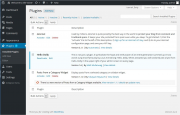
 WordPress Plugins Screen
To add a WordPress Plugin using the built-in plugin installer:
WordPress Plugins Screen
To add a WordPress Plugin using the built-in plugin installer:
For information on how to install a WordPress Plugin manually, see our manual installation guide below.
Backup your site completely before proceeding.
To install a WordPress Plugin manually:
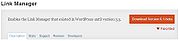
A favorite plugin in WordPress Plugins Directory
To favorite a plugin:
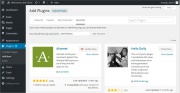
Viewing a user's favorite plugins in the dashboard
To install plugins from a user's list of favorites within the WordPress dashboard:
Most WordPress Plugins have an option to completely uninstall themselves, though not all. If you wish to remove a WordPress Plugin permanently:
Today I am gonna show you How can we install wordpress plugins..
so let's beginning to show:::
WordPress Plugins are composed of PHP scripts that extend the functionality of WordPress. They offer new additions to your blog that either enhance features that were already available or add otherwise unavailable new features to your site.
The majority of WordPress users don't require Plugins, or only require a few, such as Plugins dealing with comment spam or customized post listings. Other users enjoy the varied options Plugins provide such as frequently updated weather reports, post word counts, rating systems, and more. WordPress Plugins are optional, based upon the needs of the user, and thus they are not incorporated into the core of WordPress.
Plugins available via the WordPress Plugins Directory site are designed by volunteers and are usually free to the public. WordPress Plugins hosted in the WordPress Plugins Directory are considered thoroughly tested and "safe." Remember, WordPress Plugins are the responsibility of the author and the user, and they are typically works-in-progress as WordPress grows and expands.
If you want to develop your own Plugins, there is a comprehensive list of resources at Plugin Resources.
Finding Plugins
You can find WordPress Plugins in the Administration Screens > Plugins > Add New screen, or directly via the WordPress Plugins Directory.Plugin Compatibility and Updates
Check the WordPress Plugin listing on the Plugins List on your WordPress site, or on the WordPress Plugins Directory to determine compatibility and if updates are available.If a WordPress Plugin update is available, it will be shown on the Dashboard screen, an alert on the Plugin's menu title, and on the Plugin List. Follow the instructions to update the Plugin.
If a WordPress Plugin is not compatible or updated for the next release of WordPress, contact the Plugin author directly for information on the next update and compatibility issues.
Installing Plugins
Automatic Plugin Installation

- Go to Plugins > Add New.
- Type in the name of the WordPress Plugin or descriptive keyword, author, or tag in Search Plugins box or click a tag link below the screen.
- Find the WordPress Plugin you wish to install.
- Click Details for more information about the Plugin and instructions you may wish to print or save to help setup the Plugin.
- Click Install Now to install the WordPress Plugin.
- The resulting installation screen will list the installation as successful or note any problems during the install.
- If successful, click Activate Plugin to activate it, or Return to Plugin Installer for further actions.
For information on how to install a WordPress Plugin manually, see our manual installation guide below.
Manual Plugin Installation
There are a few cases when manually installing a WordPress Plugin is appropriate.- If you wish to control the placement and process of installing a WordPress Plugin.
- If your server does not permit automatic installation of a WordPress Plugin.
- The WordPress Plugin is not in the WordPress Plugins Directory.
Backup your site completely before proceeding.
To install a WordPress Plugin manually:
- Download your WordPress Plugin to your desktop.
- If downloaded as a zip archive, extract the Plugin folder to your desktop.
- Read through the "readme" file thoroughly to ensure you follow the installation instructions.
- With your FTP program, upload the Plugin folder to the wp-content/plugins folder in your WordPress directory online.
- Go to Plugins screen and find the newly uploaded Plugin in the list.
- Click Activate to activate it.
Plugin Favorites
The ability to favorite a plugin was added to the WordPress Plugins Directory in 2012. WordPress Version 3.5 introduced the ability to display and easily install a user's favorite plugins from the Add New plugins page of the dashboard.WordPress Plugins Directory

- You must be logged in to the WordPress Plugins Directory
- While you are viewing a plugin's page, click the Favorite link below the plugin's download button.
Installing Favorite Plugins

- Go to Plugins > Add New.
- Under Favorites, type in the WordPress.org username of the user who's favorites you would like to install and click Get Favorites.
- Follow the Installing Plugins above to install the plugins you would like.
Troubleshooting
Occasionally, a WordPress Plugin may not work as expected, or at all, or conflict with another WordPress Plugin.- Check you've followed the instructions included with the WordPress Plugin exactly.
- Check that the Plugin has been activated in your Plugin Screen of your Administration Screens.
- Deactivate and re-activate the Plugin to see if this makes it work.
- Search the WordPress Support Forums for the name of the Plugin and keywords associated with the problem you are experiencing.
- Check the WordPress Plugins Directory for the notes on the Plugin and links to issues reported in the Forums.
- Go to the website of the Plugin author and check their blog and Plugin page for known issues or advice.
- Search the web with the name of the Plugin and keywords associated with the trouble.
- Post a question on the WordPress Support Forums with the name of the Plugin and specific problems in the title. For advice on how to improve your chances of getting help, see Finding WordPress Help.
- If the problem persists and you cannot seem to solve it, check to see if there are any similar WordPress Plugins that you can try instead.
- Try the following tips below for troubleshooting the problem yourself if you have no fear of going "under the hood."
Advanced Troubleshootings
If you are experiencing problems with a Plugin you installed or one that stopped working after upgrades, the following are the steps you need to take to troubleshoot the Plugin:- If you manually installed the Plugin, use your FTP program to delete the Plugin folder/files and upload it again.
- If you made changes to the WordPress Theme template files to add the Plugin's code or customization, make sure they are correct, spelled right (including letter case), and placed in the appropriate place, e.g., within the WordPress Loop or outside of it.
- Check that you uploaded the file to the Plugins folder under wp-content. If you are uploading a new version to replace the old, delete the old version prior to uploading the new one.
- If the Plugin does not appear in the Plugins List, view the Plugin's main file in the Plugin Editor to ensure the Plugin's header text exists and is properly formed.
- If you're using a custom WordPress Theme, try using one of the default WordPress Themes to see if your issue is Theme related. If it is, contact the Theme developer for assistance.
- Deactivate all your Plugins to ensure they're not causing the problem. Reactivate the problematic one. If it works, there maybe a conflict. Activate the others one-by-one and test the
- site to see if the problem ceases or returns, which may indicate the conflicting Plugin.
Extra for you
Uninstalling Plugins
To uninstall a WordPress Plugin:- Go to Plugins screen.
- Find the Plugin you wish to deactivate and uninstall.
- Click Deactivate.
Most WordPress Plugins have an option to completely uninstall themselves, though not all. If you wish to remove a WordPress Plugin permanently:
- Check the WordPress Plugin instructions in the Details readme file on how to properly uninstall the Plugin.
- If the WordPress Plugin required the addition of code to the WordPress Theme, manually edit the Theme files to remove it.
- Deactivate the Plugin and remove it manually through your FTP program.
- Login to the site via your FTP Program.
- Go to the WordPress Plugins Directory and find where the Plugin is installed.
- Delete the WordPress Plugin folder and/or files from your server.
Installing wordpress plugins
![Installing wordpress plugins]() Reviewed by Lawyer Sabuj
on
2:05:00 AM
Rating:
Reviewed by Lawyer Sabuj
on
2:05:00 AM
Rating:


No comments:
Post a Comment